Employee Monitoring Software With
Screenshots: A Practical Guide
2026-08-31
•
Author:
•
~1 min read
•
Updated August 31, 2026
- What Is Employee Monitoring Software With Screenshots?
- How Does Employee Screenshot Monitoring Work?
- —Monitoring Software Runs During Working Hours
- —Screenshots Are Captured During the Work Session
- —Screenshots Are Organized for Review
- —Activity Data Provides Additional Context
- What Can Managers Learn From Employee Screenshots?
- —Verify Work on Assigned Tasks
- —Understand How Working Time Is Used
- —Investigate Unusual Activity
- Employee Monitoring Software With Screenshots for Remote Teams
- Why Screenshots Should Not Be Used as the Only Productivity Metric
- Important Features to Look for in Screenshot Monitoring Software
- —Screenshot History and Filtering
- —Active and Idle Time Tracking
- —Application Usage Monitoring
- —Website Usage Monitoring
- —Screen Recording
- —Productivity and Workload Reports
- How HR Teams Can Use Screenshot Monitoring Responsibly
- Privacy and Transparency Should Be Part of the Setup
- How TrackForce Supports Employee Monitoring With Screenshots
- —Screenshot Monitoring
- —Website and Application Monitoring
- —Screen Records
- —Employee Productivity Reports
- —Role-Based Monitoring Access
- Final Step: Get Better Visibility Into How Your Team Works
Managing a team is easier when you know how work is progressing. The challenge is that working hours alone do not always provide enough information.
An employee may be logged in for eight hours, but a timesheet cannot tell you how those hours were divided between assigned tasks, meetings, research, applications, breaks, and periods of inactivity. The visibility gap can become even larger when employees work remotely or across different departments.
Employee monitoring software with screenshots helps address this problem by providing visual records of employee screen activity during working hours. Managers can review screenshots alongside time tracking, application usage, website activity, and productivity reports to better understand how employees are working.
However, screenshot monitoring needs to be implemented carefully. The goal should be to improve operational visibility and accountability, not to monitor employees without a legitimate business purpose.
The UK Information Commissioner's Office (ICO), for example, advises employers to have a clearly defined purpose for workplace monitoring and to use methods that are necessary and proportionate. ICO guidance on monitoring workers
Understanding both the benefits and responsibilities of screenshot monitoring can help you decide whether it is appropriate for your organization.
What Is Employee Monitoring Software With Screenshots?
Employee monitoring software with screenshots is a workforce monitoring system that periodically captures an employee's computer screen during monitored working hours.
Instead of giving managers only a start time and an end time, screenshot monitoring provides additional context about what was happening during that period.
Depending on the software, managers may also be able to review information such as:
- Active and idle time
- Applications used
- Websites visited
- Work hours
- Attendance
- Screen recordings
- Productivity reports
- Employee workload
The combination of these records can provide a more complete picture of employee activity than screenshots alone.
For example, application monitoring might show that an employee spent several hours using a browser. A screenshot could provide context by showing whether that browser was being used for research, a web-based business application, communication, training, or something unrelated to the assigned work.
That context is where screenshot monitoring becomes useful.
How Does Employee Screenshot Monitoring Work?
The exact process depends on the monitoring platform, but most screenshot-based systems follow a similar workflow.
Monitoring Software Runs During Working Hours
Employee monitoring usually begins with software installed on the employee's computer.
Depending on the organization's configuration, employees may manually start monitoring when they begin work, or the monitoring application may operate according to predefined company settings.
Once monitoring begins, the system records the workplace activity supported by the platform.
Screenshots Are Captured During the Work Session
The monitoring software captures images of the employee's screen while monitoring is active.
These screenshots normally contain information such as the employee associated with the capture and the time the screenshot was taken.
Managers therefore receive more than a collection of random images. They can connect individual screenshots with specific periods of the employee's workday.
Screenshots Are Organized for Review
Screenshot monitoring becomes difficult to use if hundreds of images are stored without organization.
A practical monitoring platform should allow managers to narrow the information they need. Filters for employees, departments, dates, or time periods make it easier to investigate a particular activity without reviewing an entire organization's screenshot history.
Chronological organization is particularly helpful because managers can follow how work changed throughout a particular period.
Activity Data Provides Additional Context
Screenshots should not be evaluated in isolation.
Application usage can show which programs employees used during working hours. Website monitoring can provide information about browser activity, while active and idle time can help managers understand periods of computer interaction and inactivity.
Reviewing these records together gives managers more context before they make conclusions about employee performance.
What Can Managers Learn From Employee Screenshots?
The value of screenshot monitoring depends on the problem a manager is trying to solve.
Constantly looking through employee screenshots is unlikely to be an efficient management practice. Screenshot records become much more useful when managers have a specific reason for reviewing them.
Verify Work on Assigned Tasks
Suppose a remote employee has been assigned to prepare a client report.
Activity records might show that the employee worked for several hours, while screenshots provide additional evidence of the applications, documents, websites, or other resources being used.
A manager can use that information to better understand whether the recorded work period is consistent with the assigned responsibility.
Understand How Working Time Is Used
Traditional time tracking answers an important question: how long did someone work?
It does not necessarily explain how that working time was used.
This distinction becomes important for employees whose jobs involve several tools.
A marketer, for example, might move between a browser, analytics platform, spreadsheet, project management software, and communication tools during a single task.
Reviewing screenshots alongside application and website data provides more context around that workflow.
Investigate Unusual Activity
Monitoring data can also help managers investigate specific exceptions.
An employee may record significantly more idle time than usual. A particular application might suddenly account for a large portion of the workday. A project may be taking considerably longer than expected.
These signals do not automatically prove that something is wrong.
Instead, they give managers a reason to investigate further and discuss the situation with the employee when necessary.
Employee Monitoring Software With Screenshots for Remote Teams
Remote teams are one of the clearest use cases for activity monitoring because managers and employees do not share the same physical workspace.
Managers may need visibility into when work begins, how tasks progress, which tools are being used, and whether workloads are distributed appropriately.
Screenshot monitoring can provide some of this context without requiring employees to continually report what they are doing.
For example, a remote manager reviewing a delayed project could examine working hours, activity levels, application usage, and relevant screenshots before discussing the delay with the employee.
That provides a more informed starting point for the conversation.
Remote work also requires greater consideration of privacy. An employee working from home may have personal information visible on the same device or workspace.
The ICO notes that workers' expectations of privacy can be greater when they work from home. Employers should therefore consider whether their monitoring approach is necessary and whether a less intrusive method could accomplish the same objective. ICO guidance on monitoring workers working from home
Why Screenshots Should Not Be Used as the Only Productivity Metric
One of the biggest mistakes managers can make is treating a screenshot as proof of productivity or non-productivity.
Consider an employee whose screenshot shows YouTube open.
The employee might be watching an unrelated video. But they could also be watching a software tutorial, studying a competitor's campaign, researching content, or learning how to solve a technical problem.
The screenshot provides evidence of what appeared on the screen. It does not automatically explain why it was there.
The same principle applies to idle time.
Someone who is not actively using a keyboard or mouse could be reading a document, participating in an offline discussion, speaking with a customer, planning a task, or taking an approved break.
Managers should therefore consider screenshots as one source of context rather than a standalone performance score.
Important Features to Look for in Screenshot Monitoring Software
Choosing employee monitoring software should involve more than checking whether it can capture screenshots.
The supporting features determine whether managers can turn monitoring records into useful information.
Screenshot History and Filtering
Managers should be able to find relevant screenshots without searching manually through thousands of images.
Filtering by employee, department, date, and time makes screenshot history considerably easier to manage.
Active and Idle Time Tracking
Active and idle time can help managers identify work patterns and periods that may require further investigation.
These metrics should still be interpreted in context because computer activity does not always represent the full scope of an employee's work.
Application Usage Monitoring
Application monitoring helps managers understand which software employees use during working hours.
For teams that rely heavily on specific tools, this information can also help managers understand workflows and identify whether employees have the software resources they need.
Website Usage Monitoring
Many modern jobs happen primarily inside a web browser.
Website monitoring can provide information such as visited domains, URLs, visit frequency, or time spent on web-based resources, depending on the monitoring platform.
This can provide valuable context when reviewing browser-heavy roles.
Screen Recording
Some employee monitoring platforms also provide screen recordings.
Unlike individual screenshots, screen recordings allow authorized managers to review a sequence of desktop activity.
Because recordings can collect significantly more information, organizations should carefully consider when this level of monitoring is justified and who should be permitted to access the recordings.
Productivity and Workload Reports
Managers should not need to inspect screenshots every day to understand what is happening.
Reporting features can summarize working hours, active time, idle time, workload, attendance, and other available activity information.
These reports make monitoring more practical when organizations manage larger teams.
How HR Teams Can Use Screenshot Monitoring Responsibly
HR teams can get more value from monitoring when they focus on patterns rather than isolated moments.
For example, repeated late starts, unusual inactivity, workload differences, or recurring changes in working patterns may justify further review.
Monitoring records can provide supporting information, but they should not replace human judgment.
If monitoring data indicates a potential performance issue, managers should consider the employee's responsibilities, working conditions, assigned tasks, and explanation before making employment decisions.
Organizations should also determine who actually needs access to monitoring information.
A team lead may need visibility into their own team, while a department manager may require broader reporting. Giving every manager access to every employee's monitoring history can create unnecessary privacy and security risks.
Role-based access can help organizations limit monitoring information to people with a legitimate operational need.
Privacy and Transparency Should Be Part of the Setup
Screenshot monitoring can capture information that has little or nothing to do with employee productivity.
For example, captured screens could contain personal communications, customer information, confidential company documents, financial information, or other sensitive data.
Organizations should therefore define their monitoring policy before implementing screenshot monitoring.
Employees should understand what information is collected, why monitoring is taking place, when monitoring occurs, who can access the information, and how monitoring data is handled.
The ICO recommends that employers be transparent about monitoring and consider factors such as purpose, necessity, proportionality, data minimization, security, and retention. ICO employment monitoring guidance
Requirements vary between countries and jurisdictions. Organizations should therefore review applicable employment, privacy, and data protection requirements before implementing employee monitoring.
How TrackForce Supports Employee Monitoring With Screenshots
TrackForce is designed to help organizations monitor and analyze employee activity across on-site and remote teams. Its Business Requirement Specification describes a platform that combines activity monitoring, time logging, reporting, employee management, and role-based access.
Screenshot Monitoring
TrackForce includes a Snapshots section for screenshot-based monitoring.
Managers can filter snapshots by employee, department, and date range. Captured screens are organized by time, and screenshot cards include the employee name, timestamp, and a thumbnail of the active screen.
This structure allows managers to narrow their review to a particular employee or department rather than manually searching through unrelated captures.
Website and Application Monitoring
TrackForce also records website and application activity.
The Websites section can display the visited site, URL, visit count, duration, employee information, and timestamp.
Its Applications section records application activity with information including employee name, timestamp, window name, and duration. Managers can use these records to better understand which software employees use during monitored working periods.
Screen Records
For situations where screenshots do not provide enough context, TrackForce's specification also includes Screen Records.
The feature archives employee desktop sessions as video clips organized chronologically by time. Authorized managers can play recordings from the dashboard to review on-screen activity during specific periods.
Employee Productivity Reports
TrackForce provides reporting features that reduce the need to manually review every screenshot.
Its reporting module includes daily workload, daily reports, monthly reports, and risk-user information. The documented metrics include work hours, active time, idle time, productive time, workload levels, and related employee activity information.
Managers can therefore use summarized data to identify periods that deserve closer attention and then review supporting activity records when necessary.
Role-Based Monitoring Access
TrackForce's BRS defines separate access levels for Super Admins, Admins, Managers, Team Leads, and Employees.
Managers are limited to department-level monitoring, while Team Leads receive visibility into their assigned teams. Employees do not receive access to other users' monitoring information.
This type of access structure can help organizations control who is permitted to review employee monitoring information.
Final Step: Get Better Visibility Into How Your Team Works
Employee monitoring is most valuable when it helps managers answer practical questions instead of simply collecting more employee data.
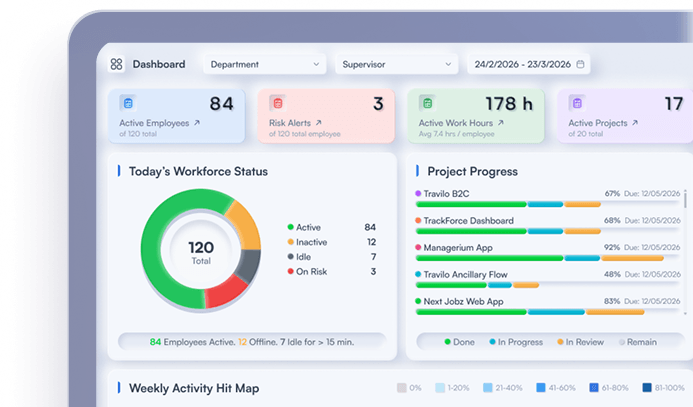
TrackForce brings screenshots, time tracking, website activity, application usage, screen records, workload information, employee management, and reporting into a centralized monitoring environment. Its dashboard is designed to provide managers and team leads with an overview of employee activity, time tracking, and productivity information.
For HR administrators, managers, and business owners, this means screenshot records can be reviewed alongside the activity information surrounding them. Instead of relying entirely on timesheets or individual screenshots, managers can examine broader work patterns and investigate specific periods when necessary.
The technology should still be used with a clear purpose. Organizations should establish transparent monitoring policies, restrict access appropriately, protect collected information, and evaluate employee activity in context.
When implemented responsibly, employee monitoring software with screenshots can give managers clearer visibility into computer-based work while providing the additional context needed to make better-informed workforce decisions.
Similar blog you can explore
Employee Performance Metrics: The 9 That Predict Results
How to Improve Work Performance: 12 Changes That Hold
Workforce Analytics vs Employee Monitoring: Where the Line Sits
Start Your 30-Day
Free TrackForce Trial