Documentation
User Guidance
1. Installation
There are 3 ways to access TrackForce for a user -
1.1 Hidden App
Purpose: Likely runs in the background without a visible UI.
Steps:
- Obtain the Hidden App Installer from the Super Admin panel. Run using command line or IT deployment tools like Intune or Group Policy. Example command: TrackForceSetup.exe /silent /org=YourCompany /mode=hidden
- The app installs in background mode and starts tracking automatically on system startup.
- No desktop icon or user interface will be visible.
1.2 Password less App
Purpose: Designed for authentication systems that use tokens, one-time links, or device-based login.
Steps:
- Run the Password less installer.
- The app fetches credentials automatically from the server using the device ID or a pre-configured token.
- User doesn't need to enter any password — the app starts monitoring immediately after launch.
1.3 Login-based App
Purpose: Requires username and password credentials to access.
Steps:
- Download the Login-based app version.
- Run setup and complete installation.
- Launch TrackForce → Enter Email / Username and Password.
- Once logged in, click Start Monitoring to begin tracking activity.
1.4 Install Trackforce:
A professional guide for installing TrackForce in your laptop is given in the following steps-
Steps:
- First, admins have to register for a TrackForce account—sign up via the website or obtain their license or activation key.
- Then they have to download the installer for the client devices' OS, like Windows or Mac, that the admin wants to monitor.
- Install the installer on each endpoint device:
- Admin must run the installer with administrator rights.
- Enter license or activation key if required.
- Choose installation options like visible vs invisible mode and auto-startup.
- Configure the agent on each device:
- Set the interval for screenshots
- Set parameters for keystroke logging, app-usage tracking, and file-transfer monitoring.
- Register device names, allocate to employees, and tag by department.
- Log in to the TrackForce web portal (administrator view) and add your organization and users:
- Upload employee list or import via Excel or CSV.
- Create departments and assign users.
- Assign roles and permissions for managers vs admins.
- Enroll devices: In the web portal, link each device to a user account and ensure it shows as "Online" in the dashboard.
- Test: Verify that devices report activity, screenshots appear, logs populate, and dashboards update. Check the client UI and the portal both.
- Roll out to your full user base when everything is verified. Provide training or documentation so employees understand how their work is being tracked.
Start Your 30-Day
Free TrackForce Trial
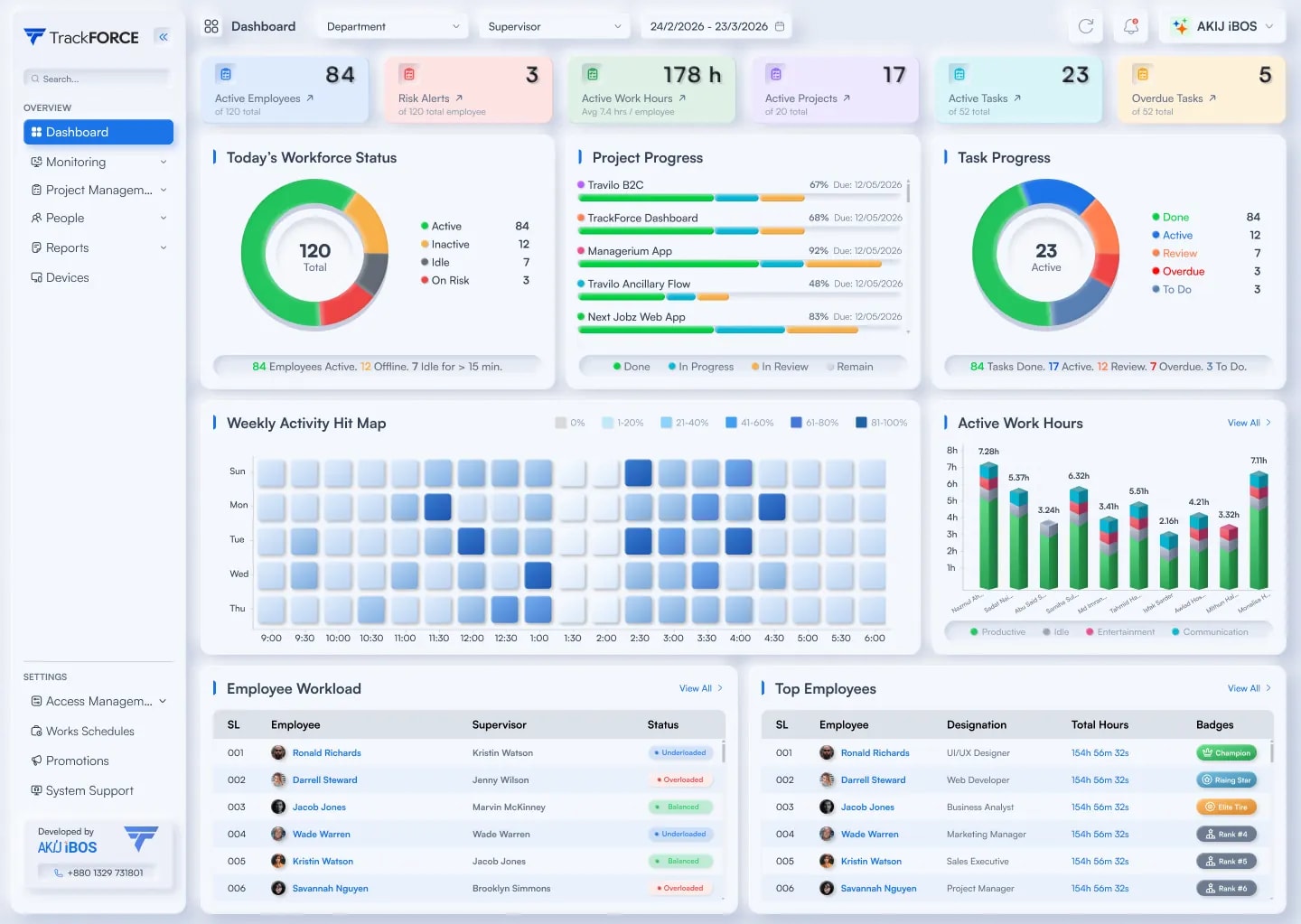
Monitor employee activity, productivity trends, and performance metrics from one centralized dashboard – updated in real time for faster, smarter decisions.